In this article, you will learn how to access, navigate, and analyze the Calls and Texts report in JobyDesk.
The Calls and Texts report serves as your ultimate dashboard for tracking total communication volume and maintaining team accountability. By evaluating inbound and outbound communication trends, you can monitor team responsiveness and ensure maximum efficiency across your business.
Analyzing these metrics allows field service leaders to identify peak communication periods, evaluate call conversion rates into booked jobs, and optimize staff scheduling for the dispatch team.
Viewing and Analyzing Communication Data
In order to view and analyze your team’s communication activity, you will need to access your Calls & Texts reporting dashboard.
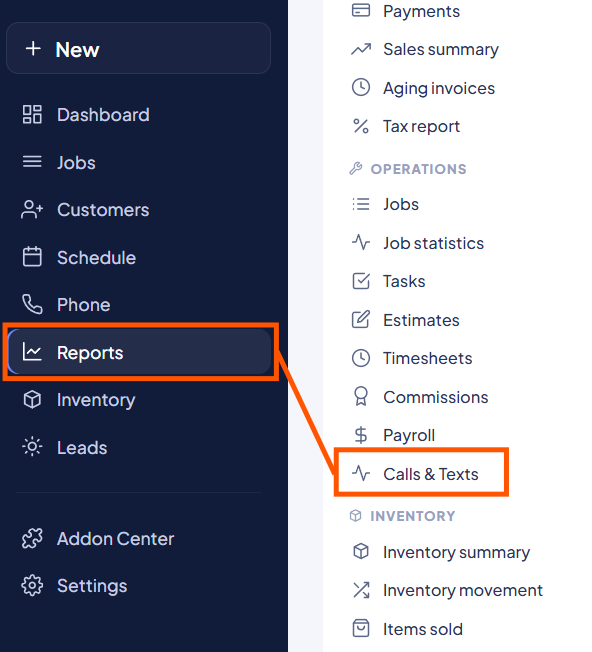
1. Navigate to the Report: Open the left sidebar menu, locate the Operations category, and click Calls & Texts.
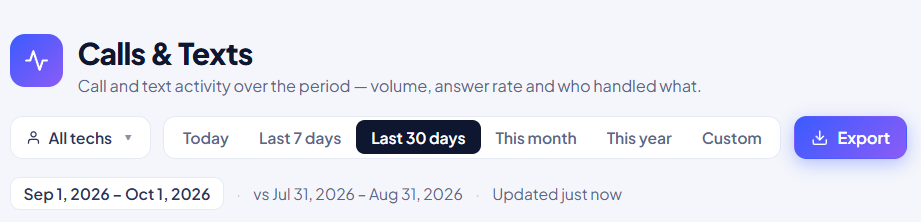
2. Filter Your Data: Use the date range selector at the top of the report (e.g., selecting This Month) to instantly update all dashboard metrics to reflect your chosen date range.
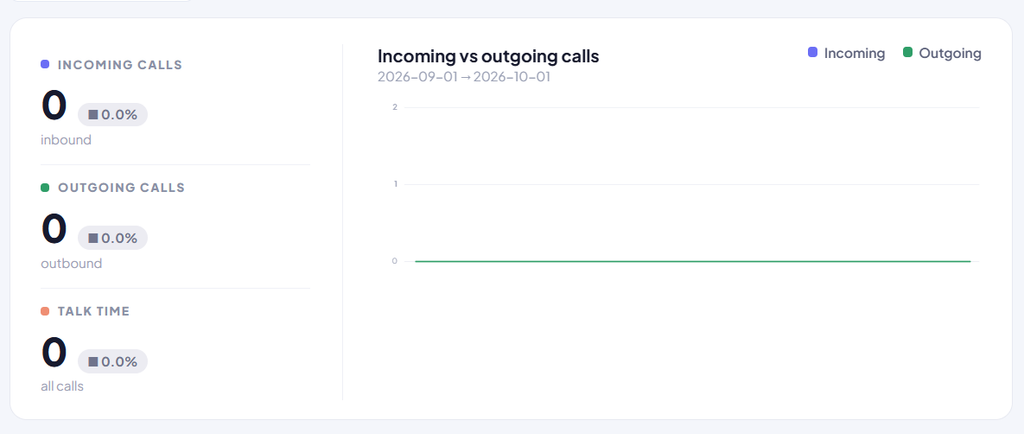
3. Review Inbound/Outbound Trends: Check total inbound and outbound metrics on the top left, alongside the interactive daily volume graph.
- Hover your cursor over any specific day on the graph to display exact numbers for incoming versus outgoing calls and identify call traffic spikes or drops.
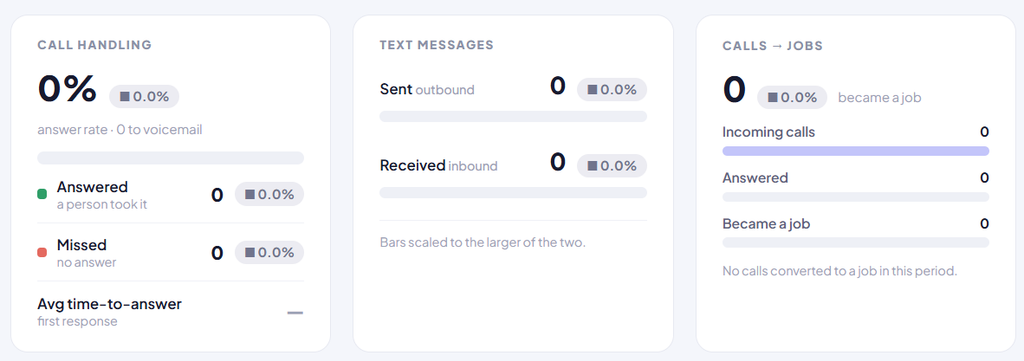
4. Evaluate Performance Cards: Scroll to the middle row to view performance breakdowns:
- Call Handling: View overall answer rates, detailing missed versus answered calls.
- Text Messages: Track total SMS message volume.
- Calls to Jobs: Track conversion performance via a visual funnel showing how many incoming calls converted into booked calendar jobs.
5. Examine Volume Heat Maps: Scroll down to the hour-by-day activity grids to pinpoint high-volume periods.
- Hover over dark purple blocks (for calls) or dark green blocks (for texts) to identify peak operating hours and guide dispatch staffing decisions.
6. Check Individual Accountability: Scroll to the Who Handled section at the bottom to see individual user performance, including call counts and average talk times.
Use these insights to make data-driven staffing adjustments and maximize job bookings across your organization.